
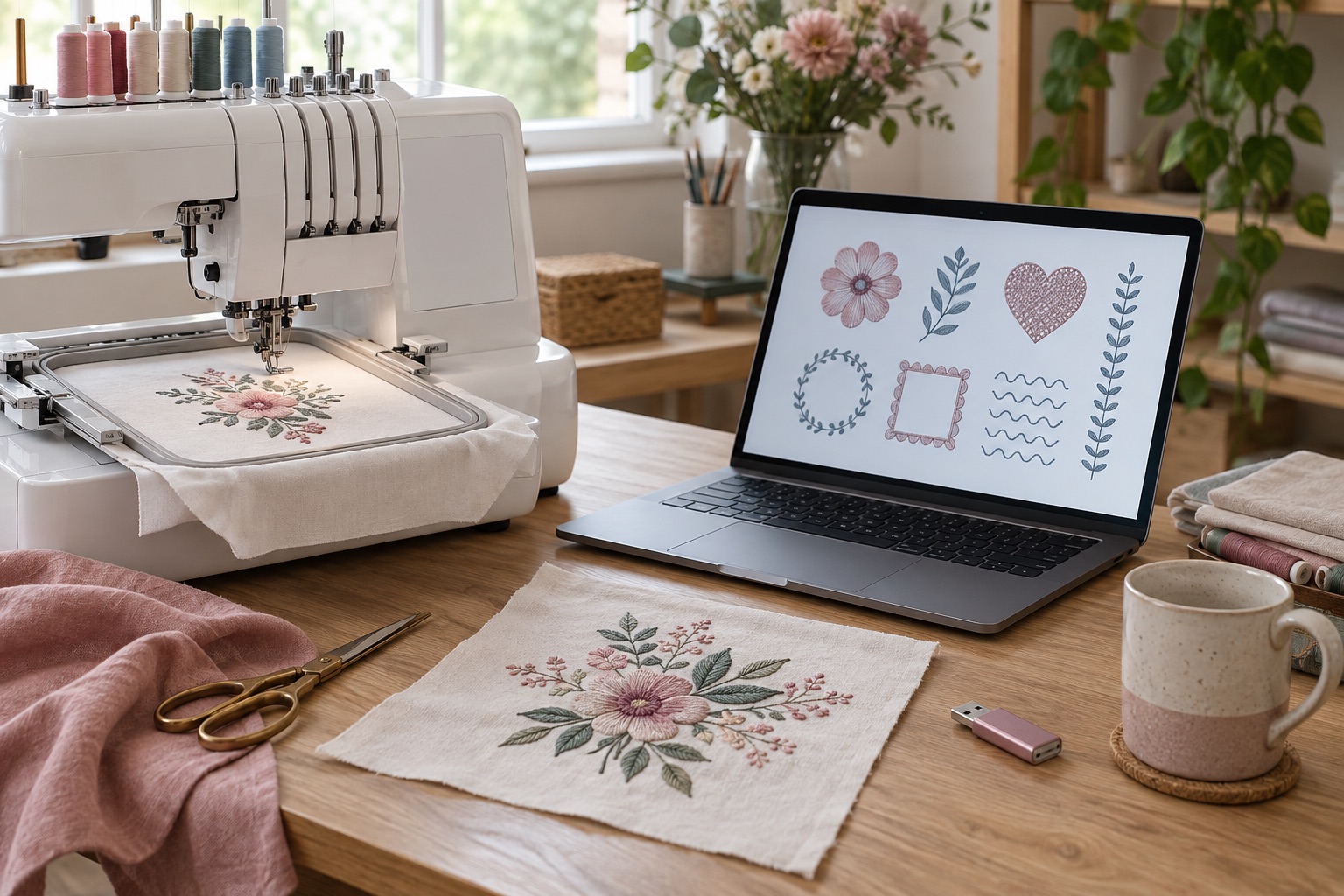
An embroidery file is not simply an image of the motif. A machine needs stitch movements, colour stops and other instructions in a format its software understands. The file extension helps identify that format, but it cannot tell you whether the design fits your hoop or whether the machine's specific firmware accepts every variant. Always use the format list in the exact model manual.
Editable source files versus stitch files
Digitising software may save an editable “master” project containing objects, shapes, fills and other information needed for later changes. It then exports a machine-ready stitch file. Janome describes its JAN and EMB files as master data, while JEF is stitch data. That distinction matters when a designer sells both: buy the machine format you need, and keep any editable source only if you have software that can open it. A JPEG or PNG picture is not made into a stitch file by changing its suffix; the image has to be digitised into stitches.
The common extensions without false universality
- PES: a common Brother machine embroidery format. Check the machine's permitted version, design size and transfer method.
- JEF: Janome's standard machine-readable stitch format. Some newer Janome machines also support JEF+ or JPX; older and simpler models may not.
- DST: a widely exchanged stitch-data format associated with Tajima. Some domestic machines import it, but colour information may not travel as expected. Janome's manual explicitly warns that a DST import can receive automatically assigned thread colours.
- Software project formats: EMB and JAN are editing/source formats in Janome's format explanation, not a universal file to copy straight to any machine.
The Brother M330E is an example of a compact embroidery-only machine with USB and wireless transfer. Its 100 × 100 mm maximum field is more important than whether a download says “Brother compatible”: the design must still fit that field.
Brother Innov-is M330E
Best for a beginner who already owns a sewing machine and wants a guided, connected route into small motifs, names, labels and monograms.
A compact embroidery-only machine with a 100 × 100 mm field, colour touchscreen, 135 built-in designs, USB and wireless design transfer.
Keep in mind
- The 100 × 100 mm field limits large designs and does not describe the overall size of the project that can be hooped.
- Design files, stabiliser, embroidery needles and thread add to the working budget.
The Janome Memory Craft 100E illustrates the other ecosystem. Check its manual for the precise accepted file and USB workflow rather than assuming every JEF-related variant or file folder will be visible.
Janome Memory Craft 100E
Best for a beginner who values a larger square design field over wireless transfer and already has a separate machine for ordinary sewing.
An embroidery-only machine with a 140 × 140 mm included hoop, 274 built-in designs, colour screen, USB transfer and a swing-out embroidery arm.
Keep in mind
- It is heavier than the compact Brother options and needs clearance for the swing-out arm.
- USB transfer is practical but less seamless than a wireless app workflow.
Before you buy or download a design
- Write down your machine's exact model, accepted extensions, maximum stitchable width and height, and supported transfer method.
- Check the design seller's stitched dimensions, not just the advertised hoop name. See how to choose a hoop size.
- Confirm that the download includes your format and an actual stitch file, not only a preview image or a ZIP you have not extracted.
- Check colour count, stitch density and the fabric for which the design was digitised. A dense motif may be unsuitable for a thin jersey even when it fits geometrically.
- Keep the original download and licence information. Export or convert using trustworthy software when the seller permits it; never assume a format conversion will preserve every colour or trim instruction.
Why a file may not appear on the machine
First extract the archive on a computer and copy the actual machine file, not the ZIP. Check the exact extension, field size and USB directory specified for your model. Some machines require folders created by the machine; others display files from a root directory. If a file appears but refuses to open, do not keep renaming it. Re-export in the supported format and check that its dimensions fit. Our transfer guide walks through a safe USB test with one known-compatible design.
Frequently asked questions
Can I turn a PNG into PES or JEF by renaming it?
No. A photograph has pixels; a machine stitch file has sewing instructions. Digitising software and design judgment are needed.
Does DST work on every embroidery machine?
No. Some models accept it, and some do not. Colour handling can also differ. Check the exact manual.
Is a 100 × 100 mm hoop the same as a 100 × 100 mm design area?
Not automatically. The machine's stitchable field and the physical hoop's outside dimensions are distinct.
Sources
The file distinctions are from Janome's embroidery-format reference, Janome's machine-manual format table and Brother's model-specific supported-format guidance.